WickSuite Documentation
Everything you need to know about using WickSuite to manage your candle business.
Table of Contents
🚀 Getting Started
Creating Your Account
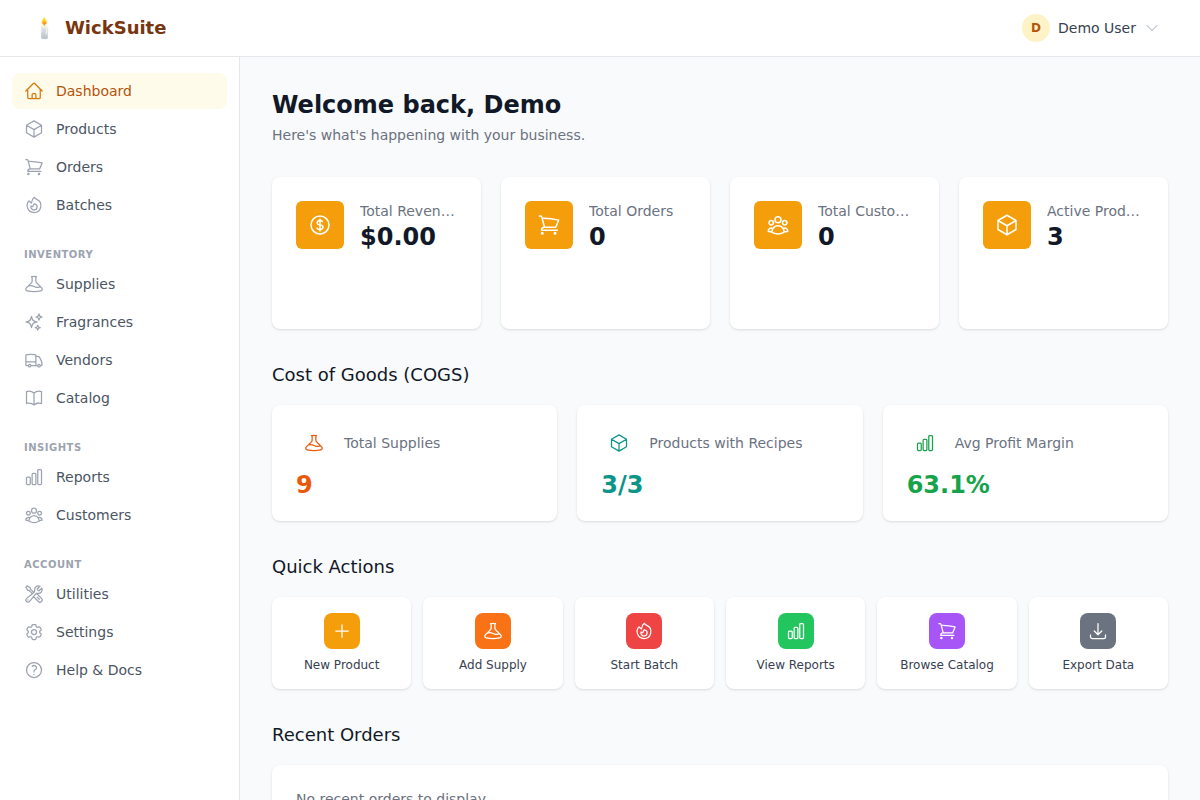
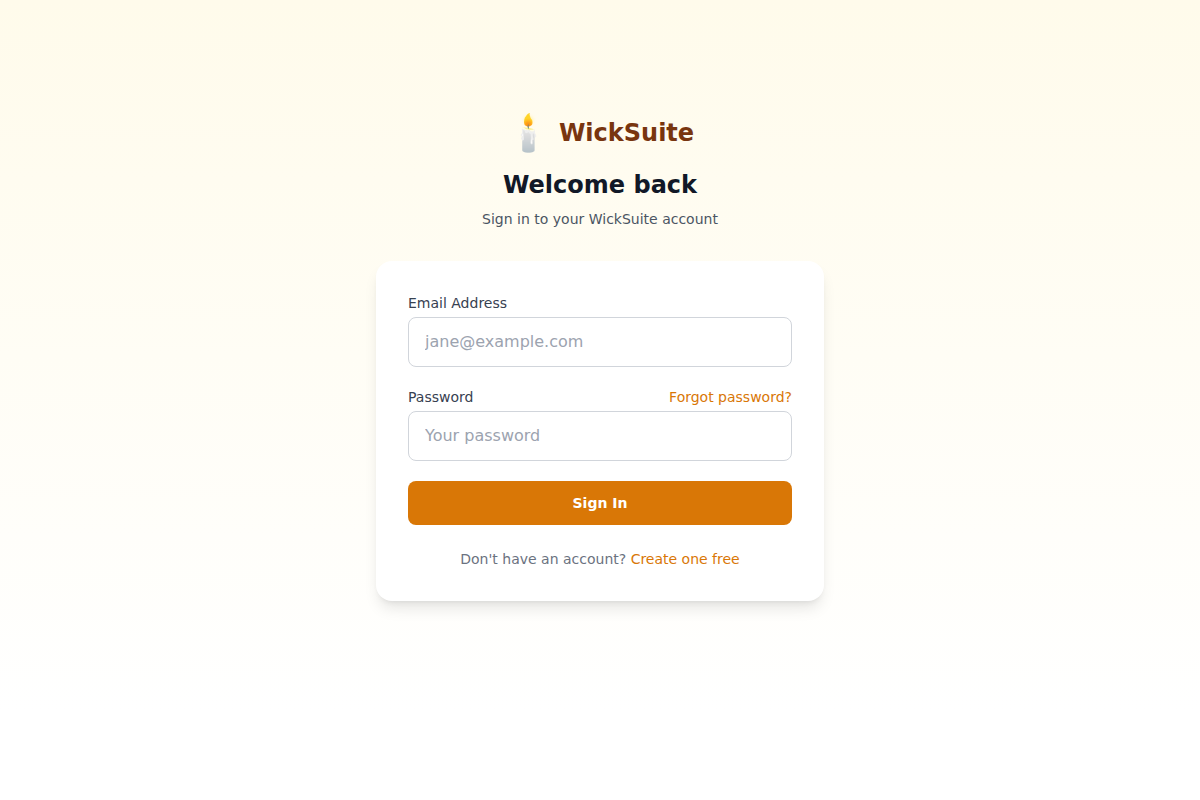
Sign up for free at wicksuite.com/auth/register. You'll need a name, email address, and password (minimum 8 characters with at least one uppercase letter, one lowercase letter, and one number). After registration, you're automatically signed in and taken to your dashboard.
Your Dashboard
The dashboard is your home base. It shows key metrics at a glance: total products, average profit margin, low stock alerts, and recent activity. The sidebar (or hamburger menu on mobile) gives you access to all sections of the app.
Recommended Setup Order
For the best experience, set up your account in this order:
1. Vendors — Add the suppliers you buy from (CandleScience, Lone Star, Amazon, etc.)
2. Supplies — Add your raw materials (wax, jars, wicks, fragrance oils) and link them to vendors
3. Fragrances — Add your fragrance oils with flash points and max load percentages
4. Products — Create your candles and wax melts, building recipes from your supplies
5. Customers & Orders — Start tracking sales
Supplies are the foundation — you need them before you can build product recipes and calculate accurate costs.
Sample Data
When you first sign up, you may see a welcome wizard that offers to seed your account with sample data — a couple of vendors, some supplies, and example products with recipes. This helps you explore the app before entering your own data. You can delete sample data anytime.
🚚 Vendors (Step 1)
Adding Vendors
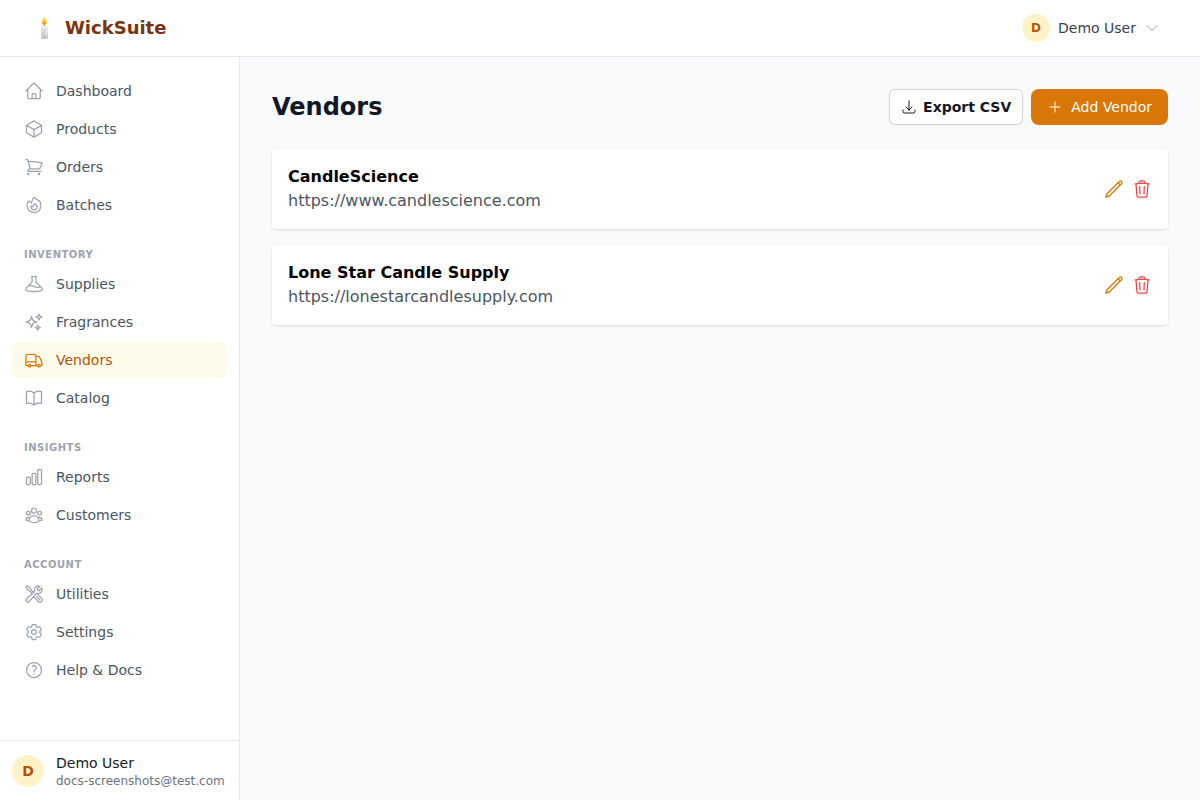
Start here — add your suppliers first. Go to Vendors → Add Vendor. Enter the vendor name, website, email, and phone number. Vendors are linked to your supplies so you can track where you buy everything and how much you spend with each supplier.
Vendor Reports
The Reports page includes vendor spend analysis, showing how much you've spent with each vendor over time.
🧪 Supplies (Step 2)
Adding Supplies
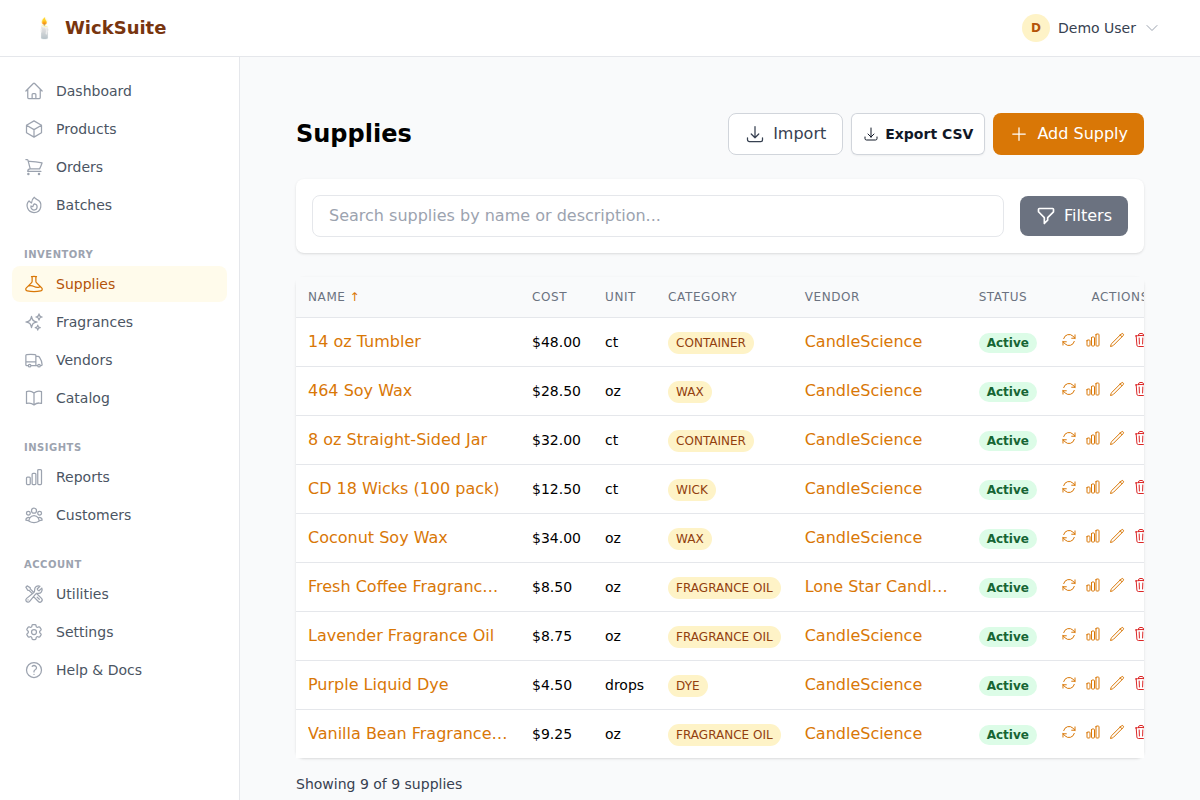
After adding vendors, add your raw materials. Go to Supplies → Add Supply. Enter the supply name, category (Wax, Fragrance Oil, Container, Wick, Dye, etc.), unit of measurement, cost, size, and vendor. You can also add a URL to the supplier's product page for easy reordering.
Importing from the Catalog
The Product Catalog (under Inventory in the sidebar) has 2,000+ products from popular suppliers like CandleScience and Lone Star. Browse or search, then click "Add to My Supplies" to import a product. Free users enter the price manually; Pro users get pricing auto-filled.
Tip: When you add a supply from the catalog, the matching vendor (e.g. CandleScience, Lone Star) is automatically created in your Vendors list if it doesn't already exist. This saves you from having to add vendors manually first.
Categories
Supplies are organized by category: Wax, Fragrance Oil, Container, Wick, Dye, Lid, Additive, Packaging, Equipment, and Other. Use categories to filter and organize your inventory.
Price History
WickSuite tracks price changes over time. Click the price history icon on any supply to see how costs have changed. Price change alerts appear on your dashboard when a supply's cost increases or decreases.
🌸 Fragrances (Step 3)
Managing Fragrances
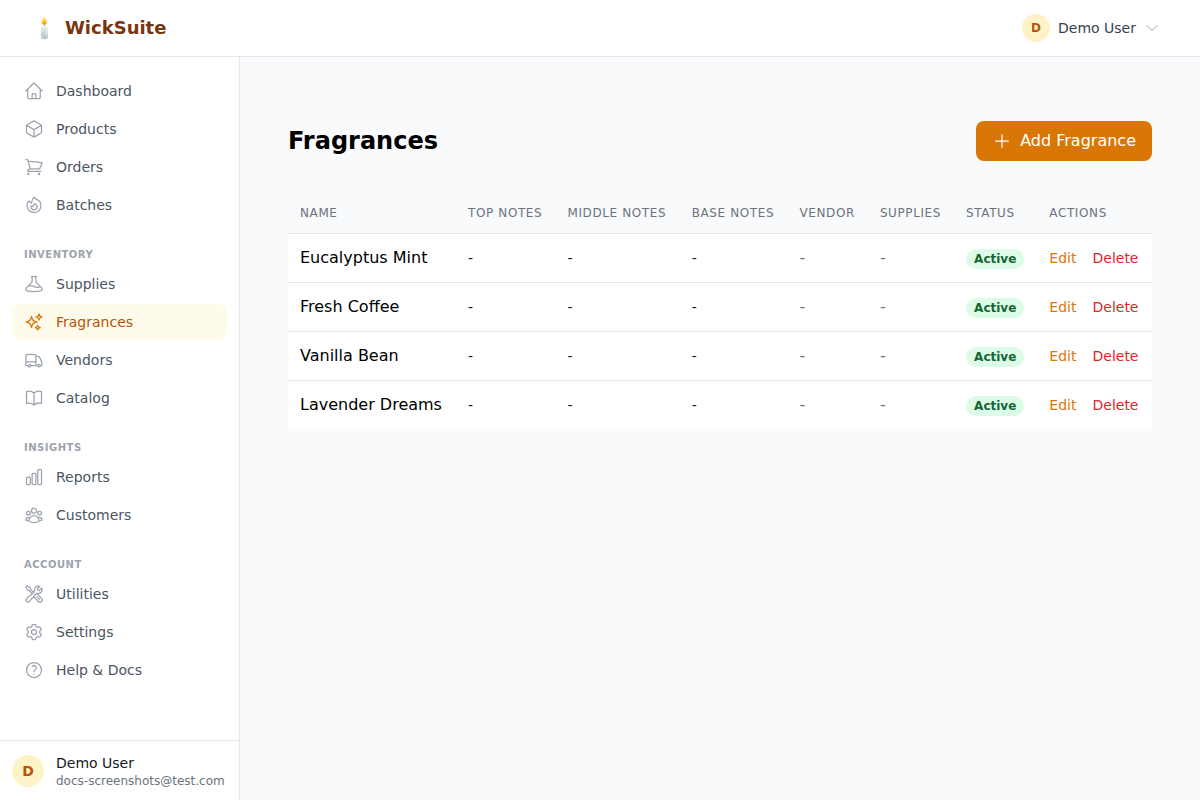
Add your fragrance oils with specific details like maximum fragrance load percentage, flash point temperature, supplier name, and tasting notes. Link fragrances to products for easy recipe management.
🕯️ Products (Step 4)
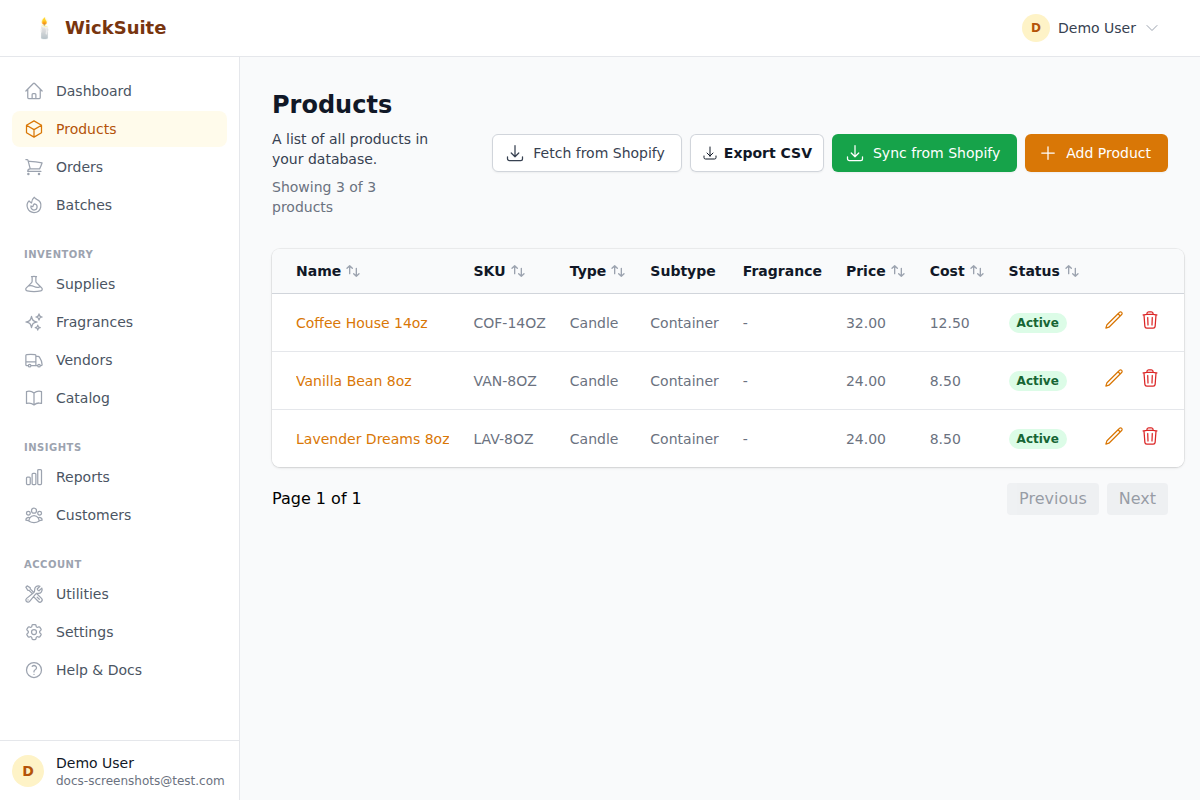
Adding a Product
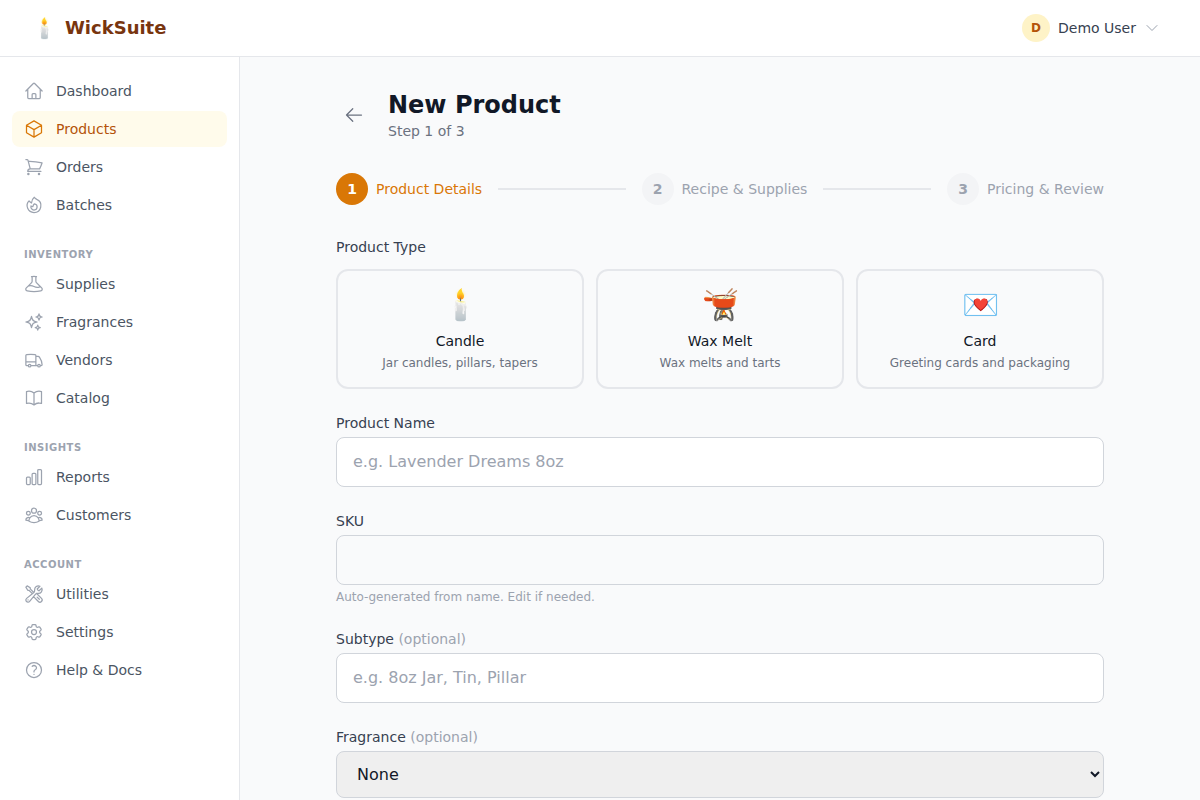
Once you have supplies and fragrances set up, create your products. Go to Products → New Product. The creation wizard has three steps:
Step 1 — Basics: Choose a product type (Candle, Wax Melt, or Card), enter a name, and a SKU is auto-generated for you (you can edit it). Select a subtype and fragrance if applicable.
Step 2 — Recipe & Supplies: Add the supplies that go into this product. Select from your existing supplies, set the quantity used per unit, and see the per-line cost and running total.
Step 3 — Pricing: Set your retail price and see a live margin indicator (green = healthy, yellow = thin, red = losing money). Review everything and submit.
Editing & Deleting Products
Click any product in the list to view its detail page with sales stats, recipe breakdown, and profit analysis. You can edit any field — name, price, cost, stock levels, recipe ingredients. Delete a product using the trash icon on the products list (products used in orders cannot be deleted).
Stock Tracking
Each product has a stock count. When stock drops to 5 or below, a low stock alert appears on your dashboard. Update stock manually on the product detail page.
🛒 Orders
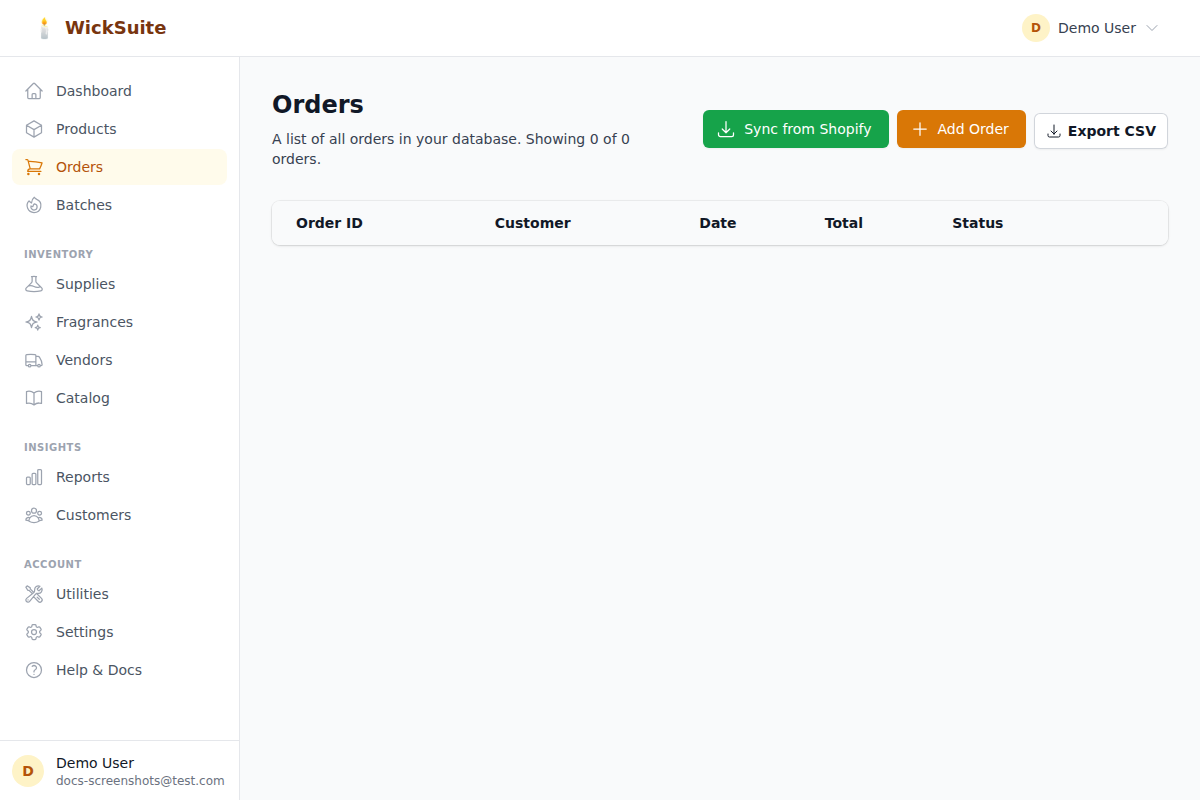
Creating Orders
Go to Orders → New Order. Select a customer (or create one), add products with quantities, and set the order status (Pending, Processing, Shipped, Delivered, Cancelled). The total is calculated automatically.
Order Channels
Track where your orders come from: Website, Etsy, Amazon, Craft Fair, Wholesale, Custom, or Other. This helps you understand which sales channels perform best.
Managing Orders
Click any order to view details, edit it, or update its status. Delete orders using the trash icon on the orders list.
👥 Customers
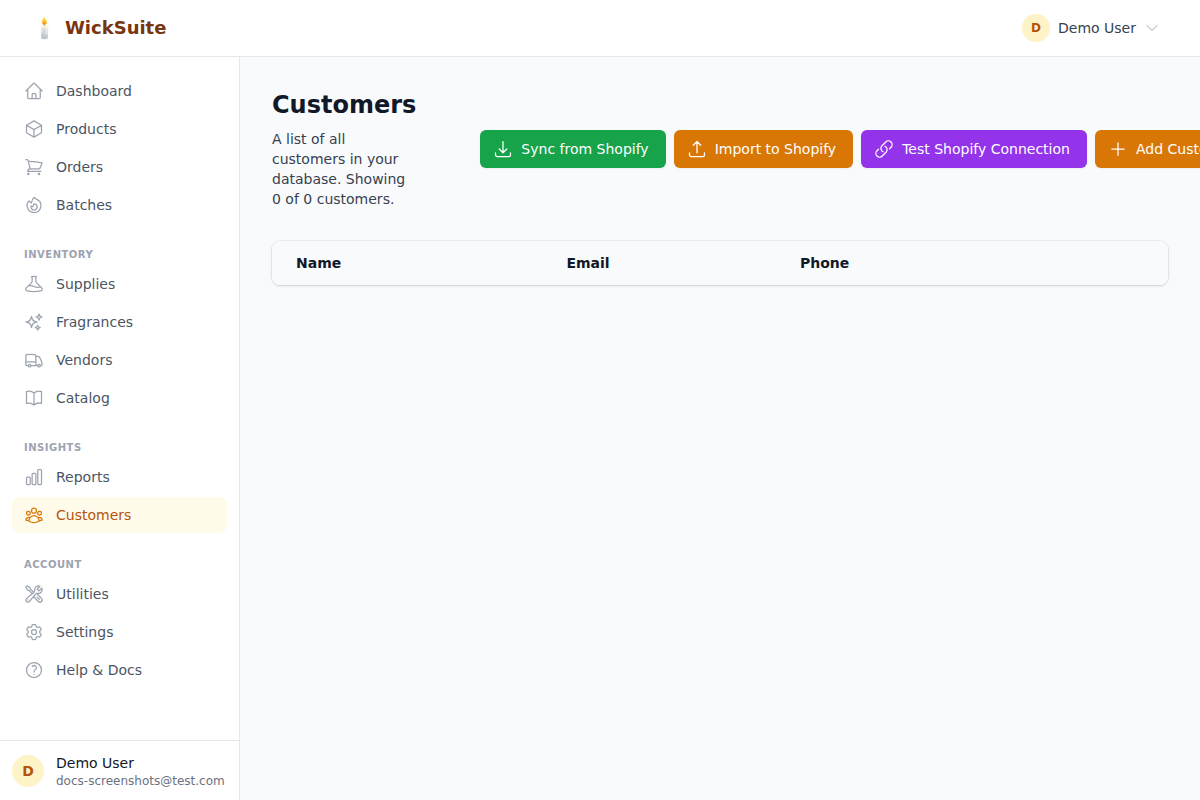
Customer Management
Track your customers with names, email, phone, and address. Each customer has a detail page showing their order history and total spend. Customers are linked to orders for easy tracking.
🔥 Batches
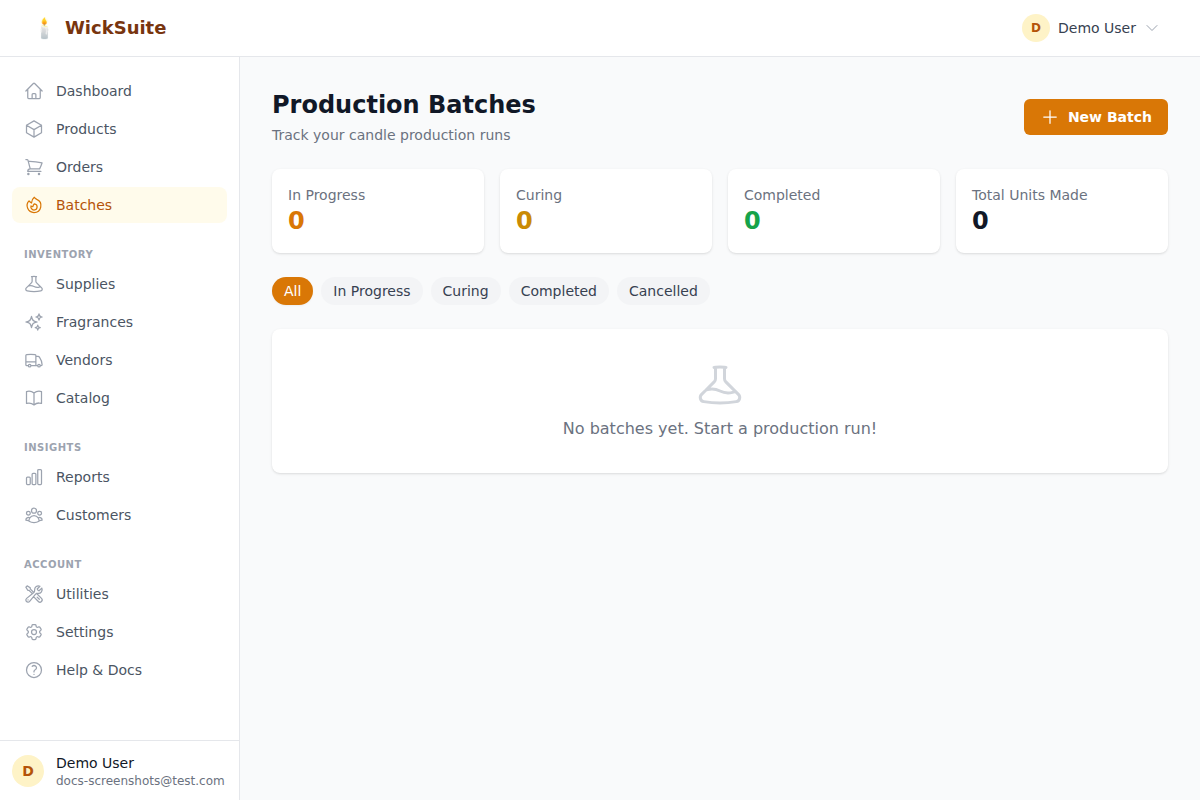
Production Tracking
Batches let you track production runs. Create a batch for a product, set the quantity you're making, and track its status (Planned, In Progress, Complete, Cancelled). This helps you plan production and track output. Available on Pro and Business plans.
📖 Product Catalog
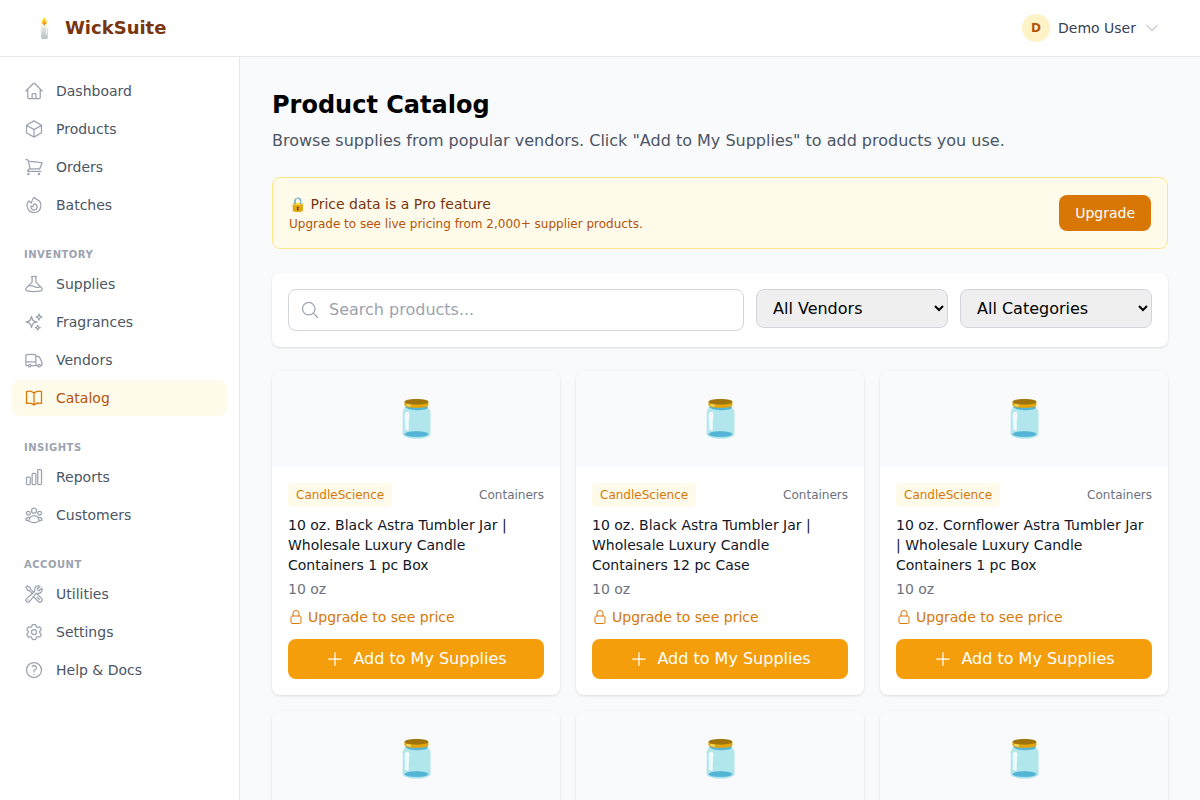
Browsing the Catalog
The catalog contains 2,000+ products from popular candle supply vendors. Search by name, filter by vendor or category. All users can browse product names, sizes, and categories.
Pricing Data
Live pricing data from suppliers is available on Pro and Business plans. Free users can still add catalog products to their supplies — you'll just enter the price manually.
📊 Reports
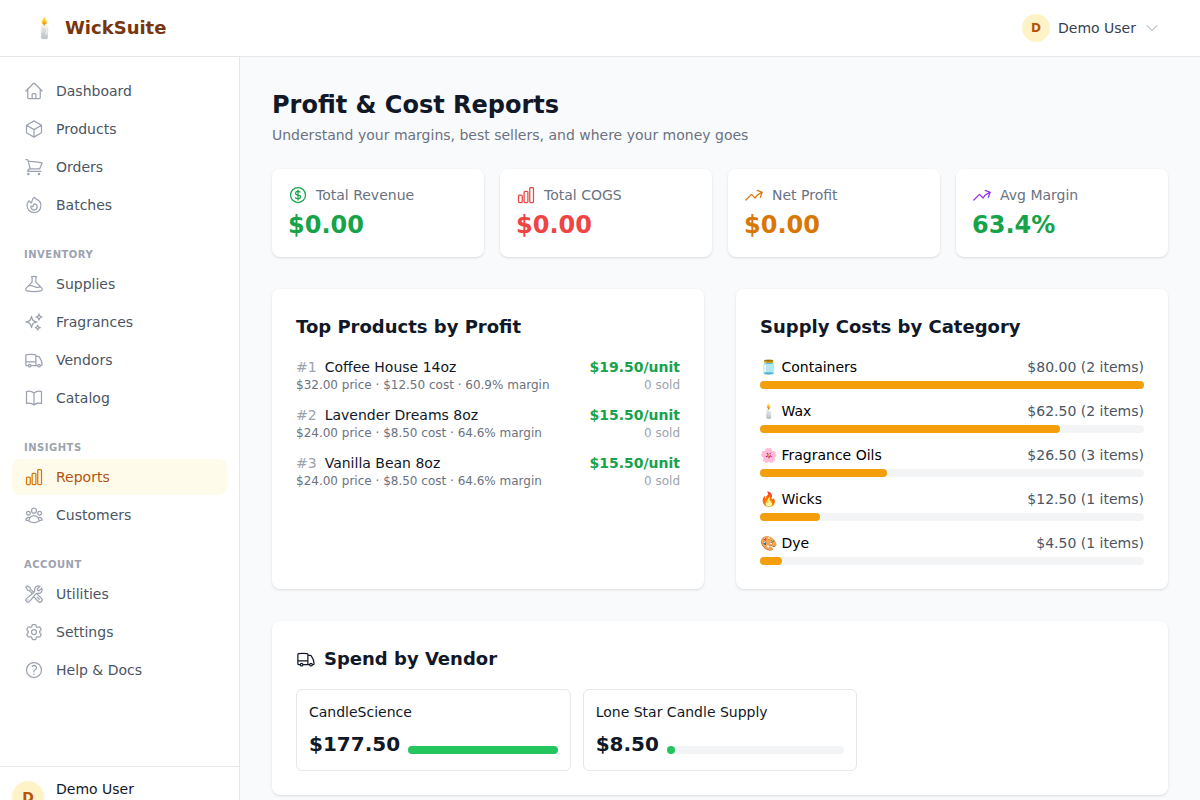
Profit & Cost Reports
The Reports page shows your business health at a glance: profit margins by product, best sellers, supply costs by category, and vendor spend breakdown. Data updates in real-time as you add orders and track costs.
⚙️ Settings
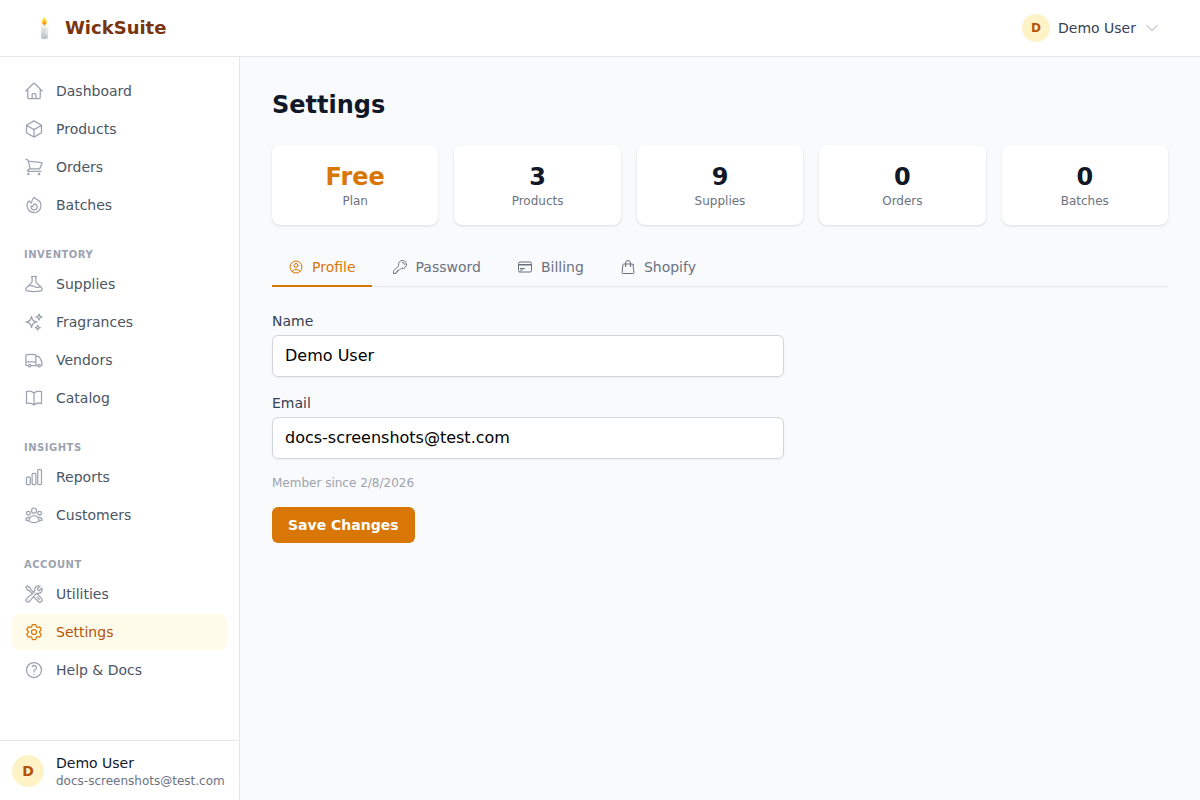
Profile
Update your name and email address on the Profile tab.
Password
Change your password on the Password tab. You'll need to enter your current password and a new one.
Billing & Plans
View your current plan and upgrade on the Billing tab. WickSuite offers three plans:
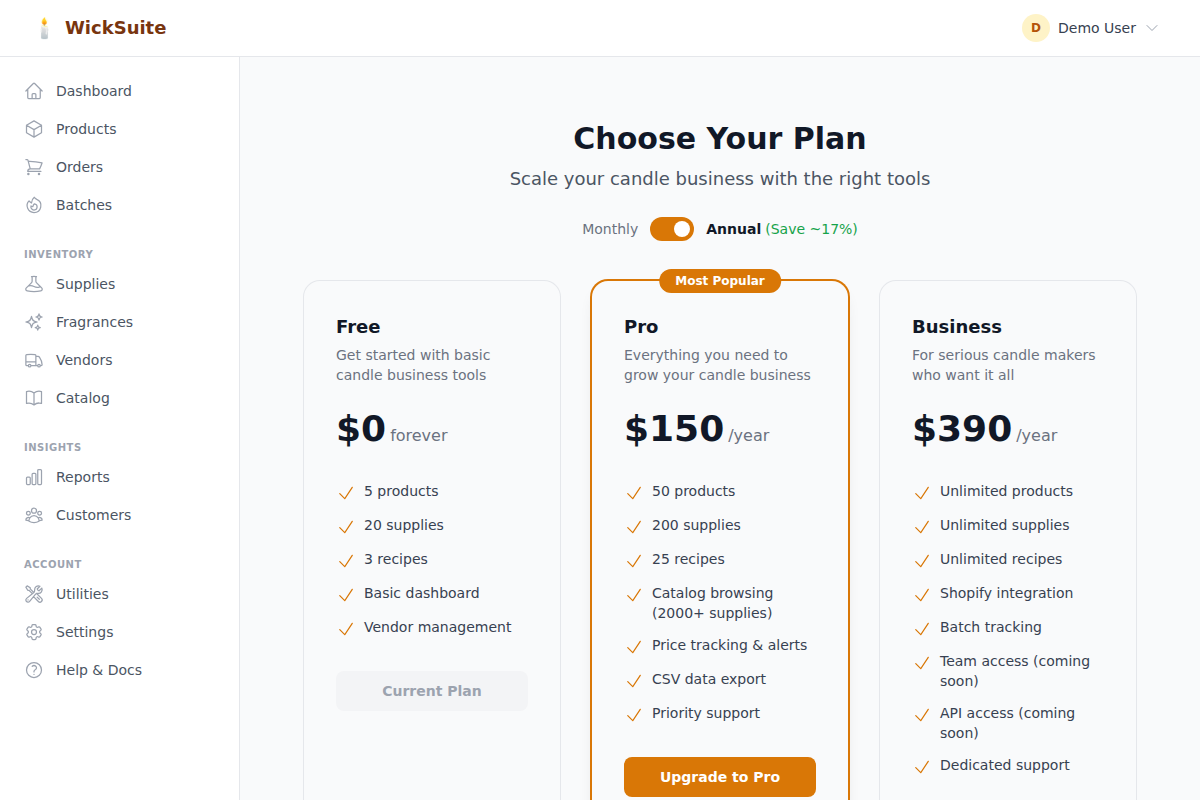
Free — 10 products, 25 supplies, basic features
Pro ($15/mo or $150/yr) — Unlimited products & supplies, catalog pricing, CSV export, batch tracking, price alerts
Business ($39/mo or $390/yr) — Everything in Pro plus batch tracking, dedicated support, and team access (coming soon)
Manage your subscription through the Stripe customer portal.
Deleting Your Account
If you need to delete your account, go to Settings → Billing → Danger Zone. Type "DELETE" to confirm. This permanently removes all your data and cancels any active subscription. This action cannot be undone.
🔧 Utilities
CSV Export
Export your data as CSV files for use in spreadsheets or other tools. Available exports: Products, Supplies, Vendors, and Orders. CSV export requires a Pro or Business plan.
🛠️ Free Tools
Available Tools
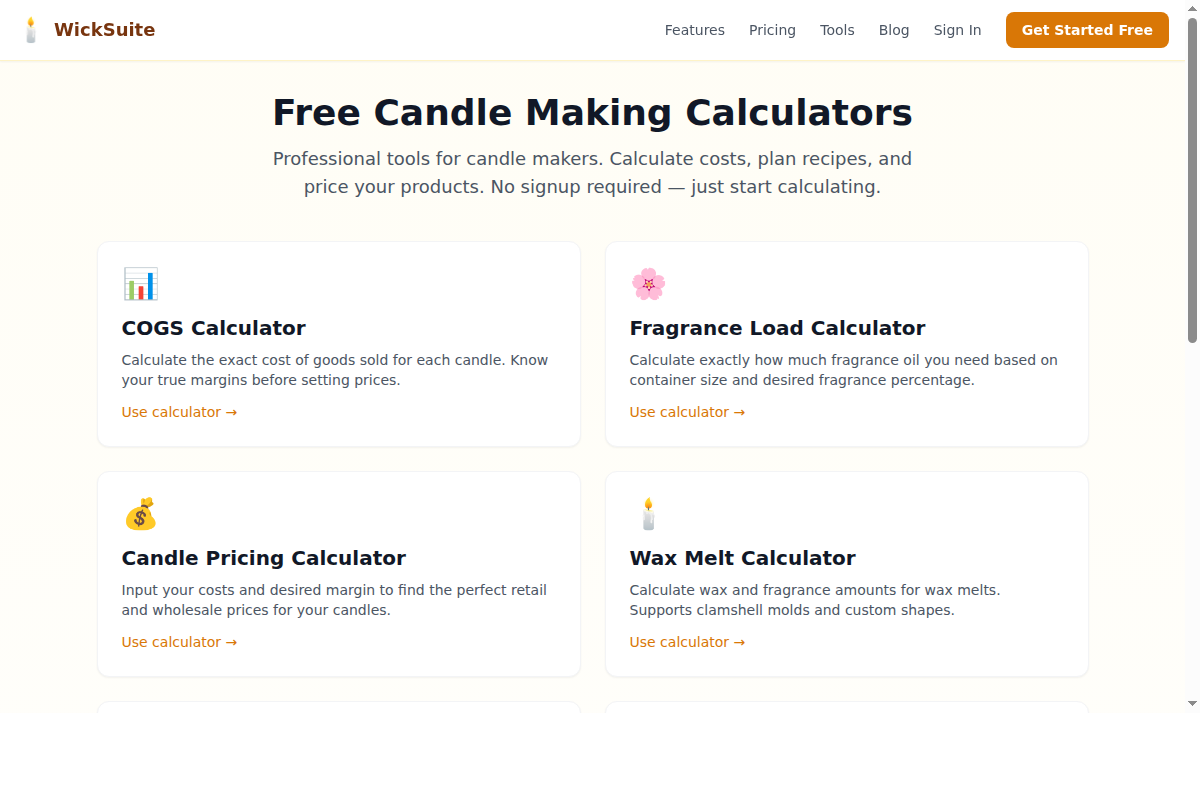
WickSuite offers free calculators that work without an account:
COGS Calculator — Calculate the exact cost of goods sold for each candle
Fragrance Calculator — Determine how much fragrance oil to use based on wax weight and desired load percentage
Pricing Calculator — Set retail and wholesale prices based on your costs and target margin
Wax Melt Calculator — Calculate recipes and costs for wax melts
Burn Time Calculator — Estimate burn time by wax type, container size, and wick configuration (estimates only — always verify with real burn tests)
Wick Size Guide — Reference guide for choosing the right wick series, with links to manufacturer wick charts
💳 Plans & Pricing
Free Plan
Get started with up to 10 products, 25 supplies, and 5 recipes. Includes basic product tracking, supply management, order tracking, customer management, and access to all free tools. No credit card required.
Pro Plan — $15/mo or $150/yr
Unlimited products, supplies, and recipes. Adds catalog pricing data, CSV export, batch/production tracking, price change alerts, and priority support.
Business Plan — $39/mo or $390/yr
Everything in Pro plus batch tracking with production history, dedicated support, and team access (coming soon). Ideal for established candle businesses scaling beyond a single maker.
💡 Tips & Best Practices
Track Everything
The more data you enter, the more useful WickSuite becomes. Track every supply purchase, every product recipe, and every order. Over time, you'll have a clear picture of your costs, margins, and most profitable products.
Use Recipes
Link supplies to products as recipe ingredients. This automatically calculates your true cost per product and keeps your COGS accurate as supply prices change.
Review Reports Regularly
Check your Reports page weekly to spot trends: which products have the best margins? Which supplies cost the most? Are your prices keeping up with supply cost increases?
Keep Stock Updated
Update stock levels after each production batch and sale. Low stock alerts help you reorder before you run out.